Accounting File Sorting Automation - Automated File Organization for Accountants
If your files are organized and use a naming convention, you don't have to manually drag and drop files into folders. Our automated document workflows and efficient file management for accountants let the computer do it for you, creating a truly paperless accounting office software solution.
Before we dive in, here are the prerequisites:
- A computer running a Windows operating system. While it's possible to automate this on a Mac, these steps are tailored for Windows.
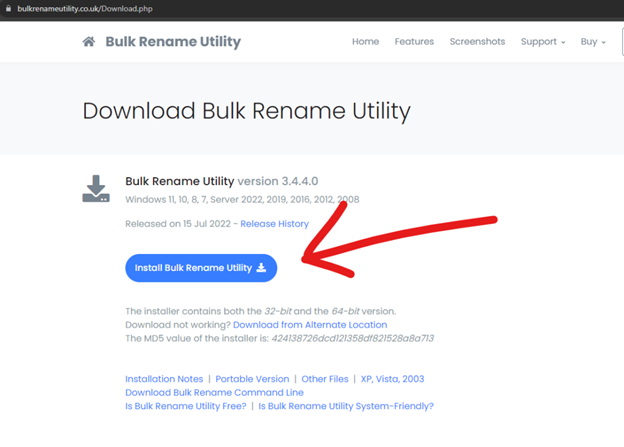
- Bulk Rename Utility - a free software for personal use, available for download from their website: Bulk Rename Utility Download
- Organized files - Ensure your files are consistently named with a specific structure. Common file types include AP files and Payroll files. For example, all files should follow a pattern like "VENDOR NAME – CHECK#.pdf" or "LAST, FIRST – MMDDYY.pdf." The separator between different parts of the file name is crucial, as we will use it to create folders based on what comes before or after the separator.
- Examples of Properly Organized Files I'll Be Using:
- Payroll files: YYYY-MM-DD_-_LAST, FIRST.pdf
- AP files: CHECK#_-_VENDOR NAME.pdf
- Examples of Properly Organized Files I'll Be Using:
Getting Started:
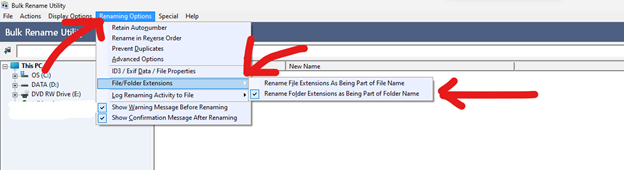
- Launch Bulk Rename Utility. If this is your first time using the program, navigate to "Renaming Options > File/Folder Extensions" and ensure "Rename Folder Extensions as Being Part of Folder Name" is checked.
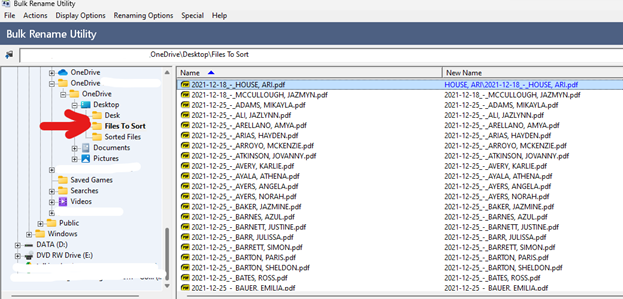
- On the left side, select the folder containing the files you want to sort. This folder should only contain the files ready for sorting and nothing else.
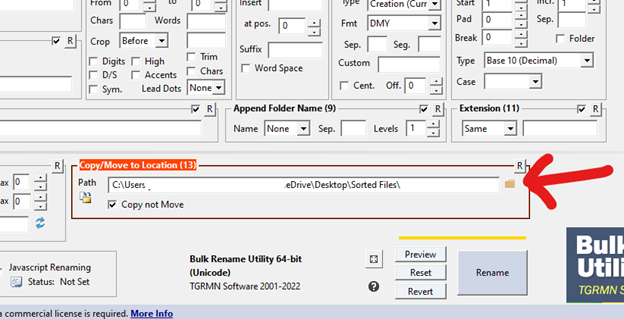
- In box 13 (bottom part of the program), select the destination directory where files will be sorted into or folders will be created. It's a good practice to work on copies of data and test folders initially. Optionally, you can check 'copy not move' which will leave a copy of the original files where they are - this is good for testing.
Organizing Files:
Now, let's focus on box 1.
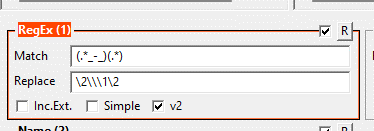
- In the "Match" section of box 1, input (.*_-_)(.*), where "_-_" represents your separator. In this example I'm using "_-_" but you may be using " - " so you would use that.
- In the "Replace" section put in the following: \2\\\1\2
- Note the text above may be different based on your naming convention, if you are having issues let me know and I'll help out.
- Ensure the checkbox next to "v2" is selected.
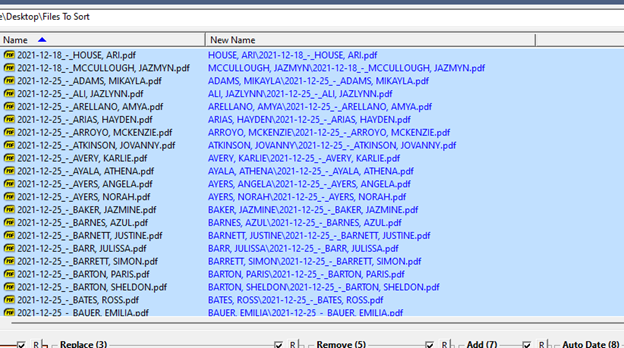
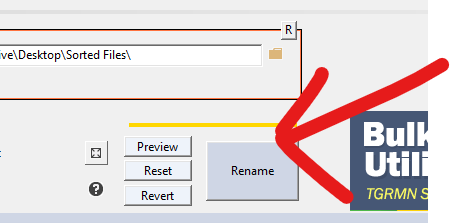
Finally, you can highlight some or all of the file names in the explorer window. You should see the new file name populate as "LAST, FIRST\YYYY-MM-DD_-_LAST, FIRST.pdf." If everything aligns with what you expect, click "Rename" in the bottom right, navigate through any warnings, and enjoy the time you've saved.
With this automation method, you can bring efficiency to your digital production accounting workflow and eliminate the need for manual file sorting.