PDF AP Check Splitting Software - Split and Name PDF Files Automatically
As a seasoned Production Accountant with over 18 years of experience, I understand the challenges that come with transitioning from a paper-based system to a digital one. However, I firmly believe that embracing digital solutions can enhance efficiency and speed in ways that traditional paper processes cannot match. In this walkthrough, I will guide you through our PDF payroll check splitter solution for splitting PDFs and renaming them automatically, specifically focusing on AP checks. This bulk PDF file splitter approach eliminates manual data entry and can be adapted for other accounting document automation needs.
Before we dive in, let's ensure you have the necessary programs and data to proceed. You will need the following programs and data.
Programs:
- A computer running a Windows operating system.
- Spreadsheet software like Excel (or alternatives such as Excel on office.com, Google Sheets, or Calc of LibreOffice).
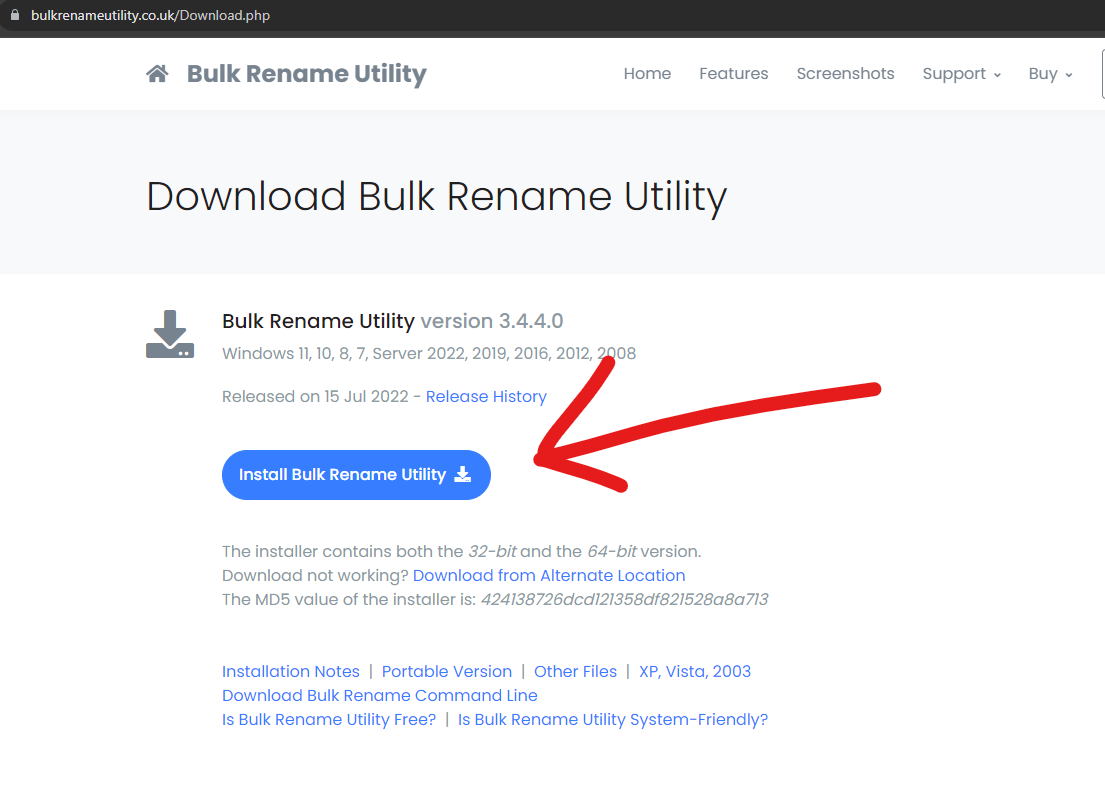
- Bulk Rename Utility. This is a free program for personal use, file renaming software that can be downloaded from their website: https://www.bulkrenameutility.co.uk/Download.php
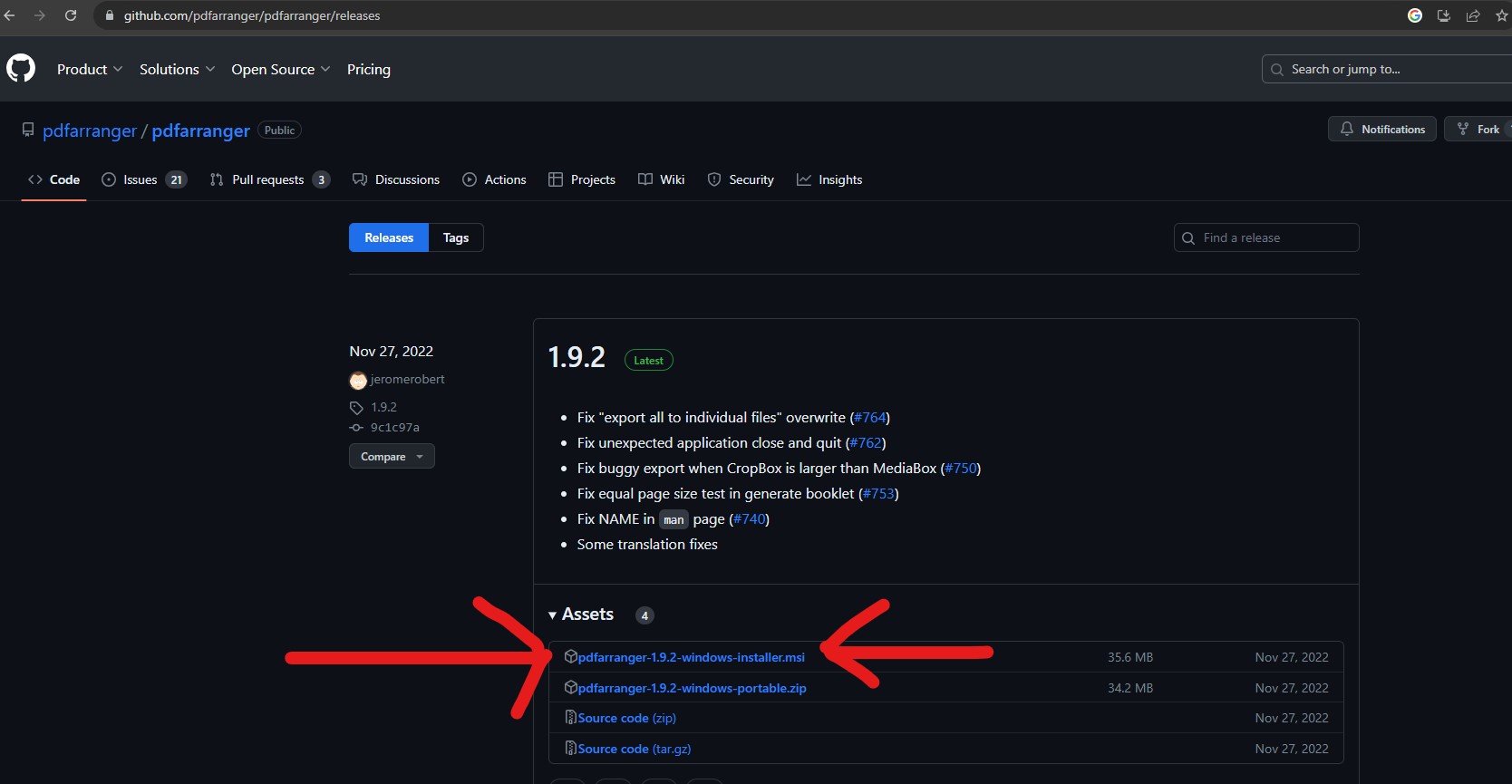
- PDF Arranger for Windows. This is an open-source program used for splitting PDFs. Download it from here: https://github.com/pdfarranger/pdfarranger/releases
Data:
- PDF copies of your AP checks consolidated into a single PDF file. You can either export them directly from your financial system or scan printed checks and save them as a PDF.
- A check register, as an Excel file, that corresponds to the PDF copies of your checks. Export the check register from your financial system, preferably without formatting, to expedite the upcoming data manipulation steps.
Step-by-Step Walkthrough on how to split and rename PDF AP check copies:
- Create a dedicated folder where you will perform the PDF splitting and renaming tasks. Place your PDF check copies and check register in this folder.
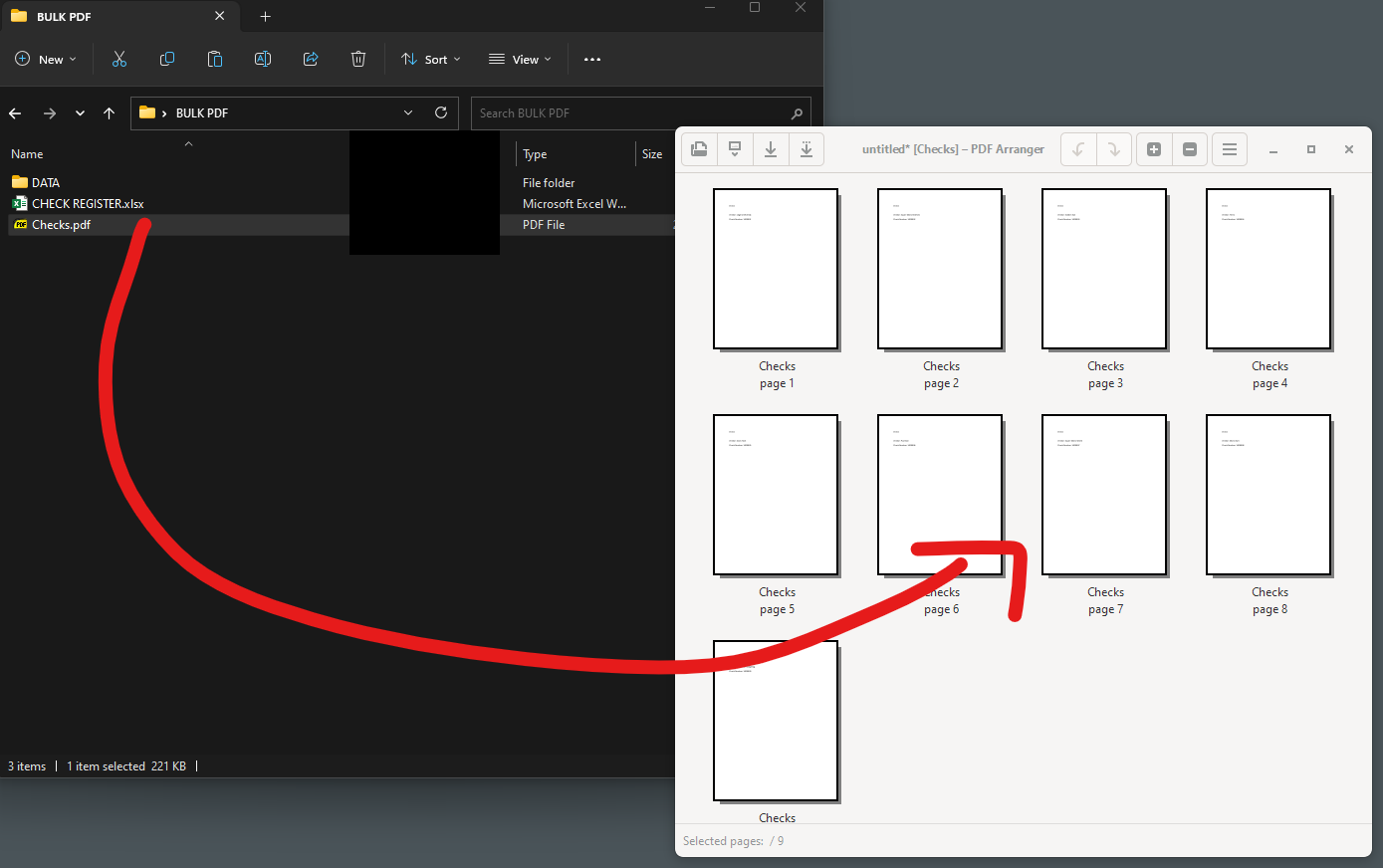
- Open PDF Arranger and drag the PDF check copy file into the program window. Once imported, you should be able to view each page of the PDF.
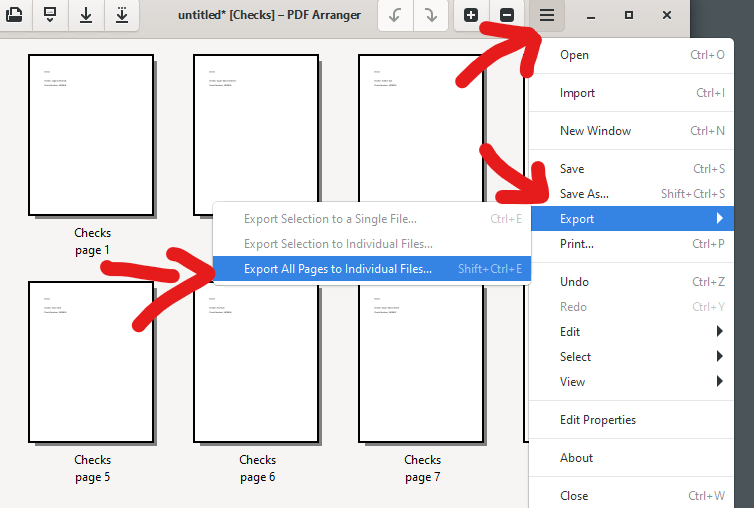
- Click the hamburger menu icon, select 'Export' from the dropdown menu, and choose 'Export all pages to individual files.'
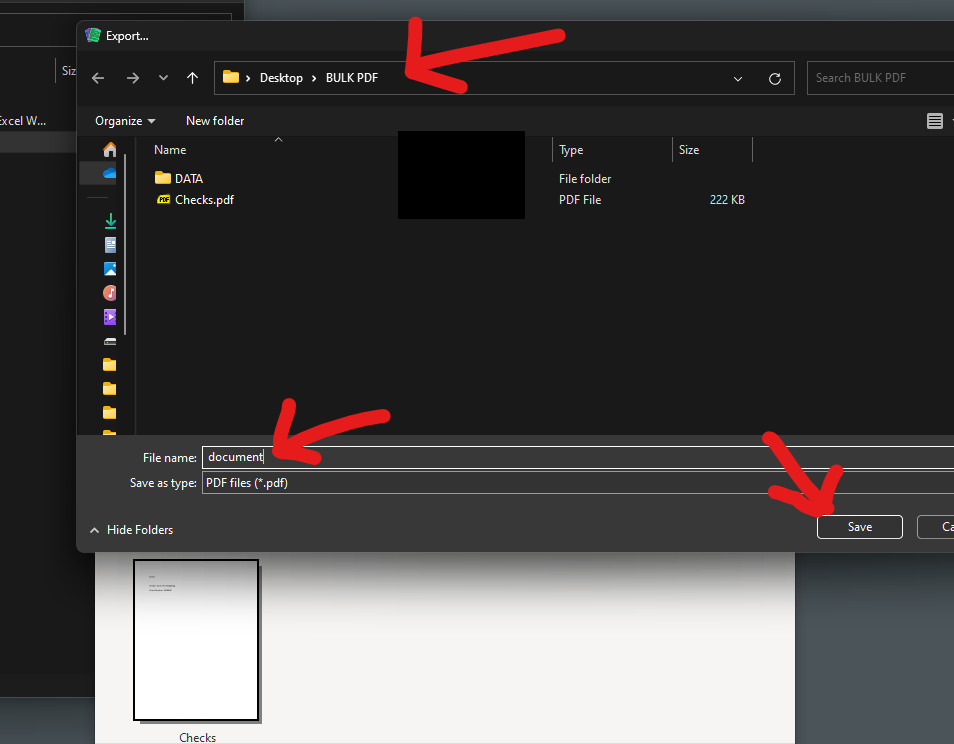
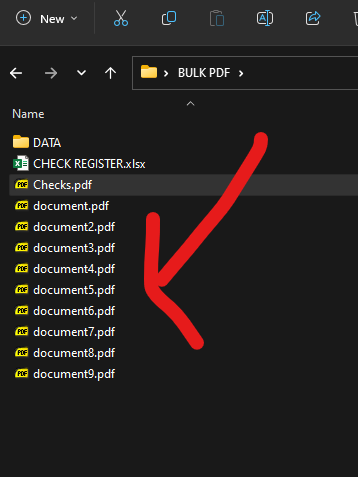
- Navigate to the working directory, provide a filename (for example, 'document'), and click 'Save.' This action will split the PDF into separate pages, sequentially named based on the provided filename.
- Close PDF Arranger without saving any changes.
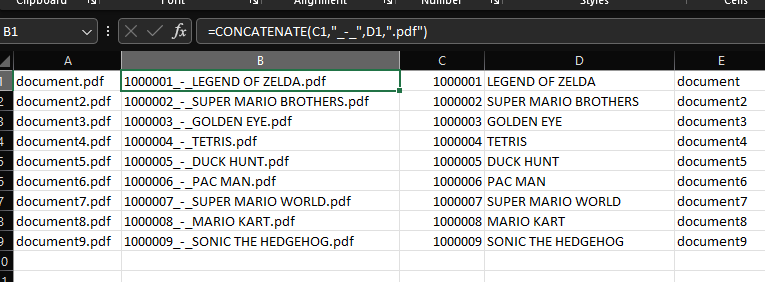
- Open your check register file in Excel. Simplify the spreadsheet by removing unnecessary columns, retaining only the check number and vendor name. Each row should contain a check number in one column and the corresponding vendor name in another.

- Insert two columns before the check number column.
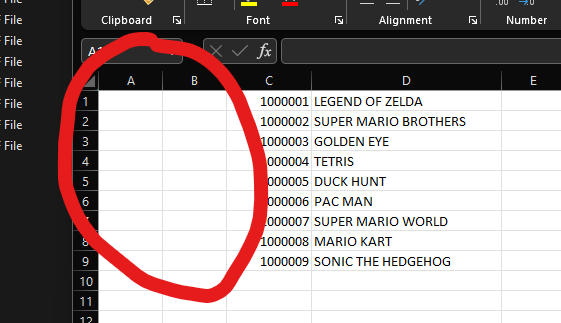
- In the column adjacent to the vendor name (column E below), enter the names for the newly split PDFs. Since the names should be in sequential order, you can enter the first name, then click and drag the cell's bottom-right corner to auto-fill the remaining names. Excel will automatically generate the sequential names.

- In column A, use the CONCATENATE function to combine the data from different cells. For example, if cell E1 contains the split PDF name, the formula in cell A1 should be =CONCATENATE(E1,".pdf"). Apply this formula to all cells in column A to generate the filenames.
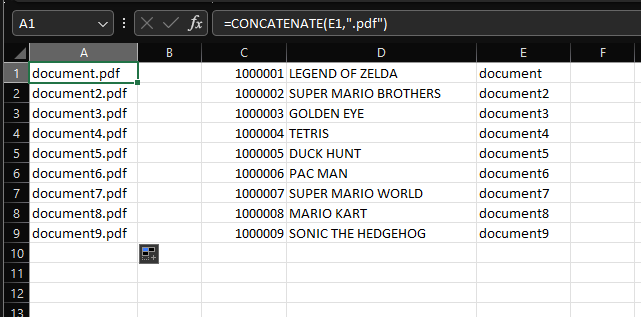
- In column B, use the same CONCATENATE function to combine the check number and vendor name, separated by a chosen delimiter. For instance, the formula in cell B1 could be =CONCATENATE(C1,"_-_",D1,".pdf"), with "_-_" serving as the delimiter or you could choose your own delimiter like " - ". Adapt this formula as needed. Drag or copy this formula to populate the remaining cells in column B.
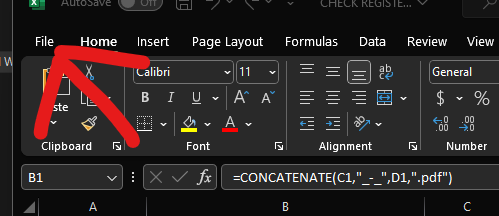
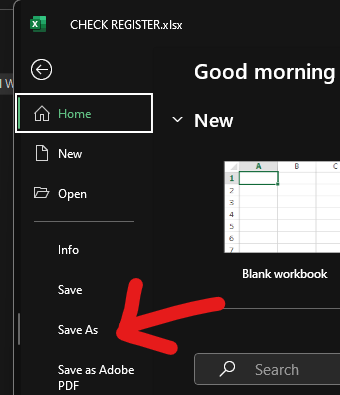
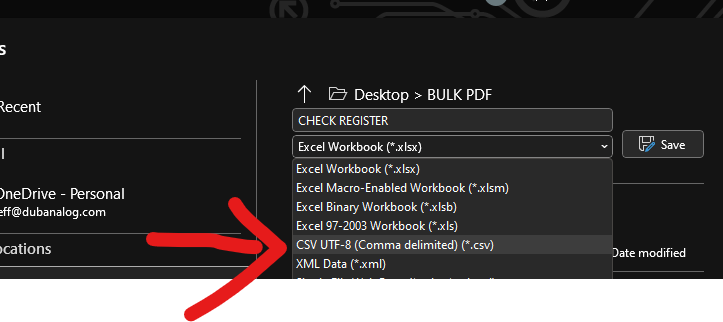
- Save the Excel file as a CSV. Click on 'File' in the menu, then select 'Save As.' Choose CSV as the file format and save the file.
- In your working folder, you should now have a CSV file and the individual PDFs resulting from the earlier split operation.

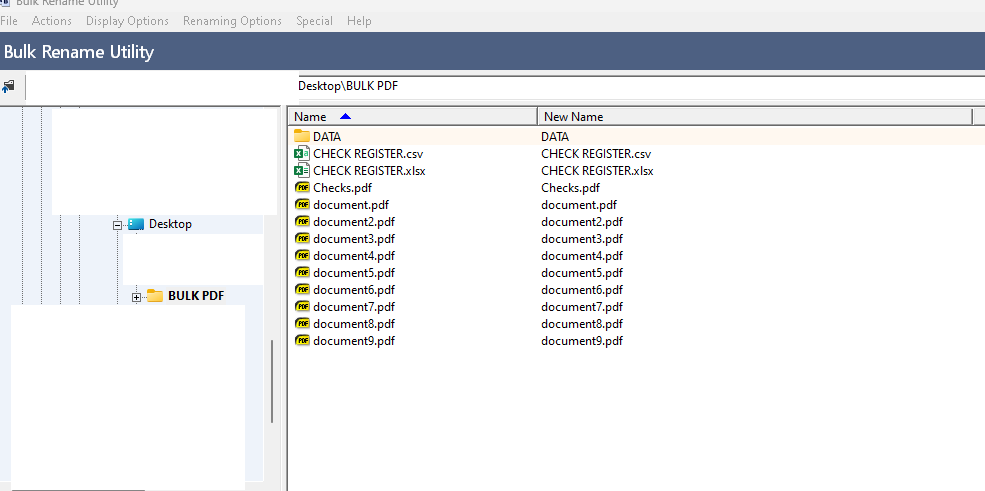
- Close Excel and open Bulk Rename Utility. Navigate to your working folder within the program.
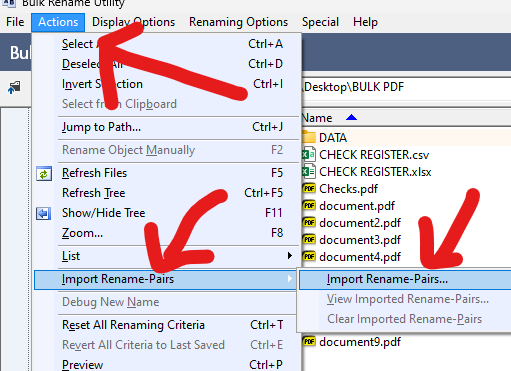
- From the top menu, select 'Actions,' then 'Import Rename-Pairs,' and finally 'Import Rename-Pairs' in the second dropdown menu.
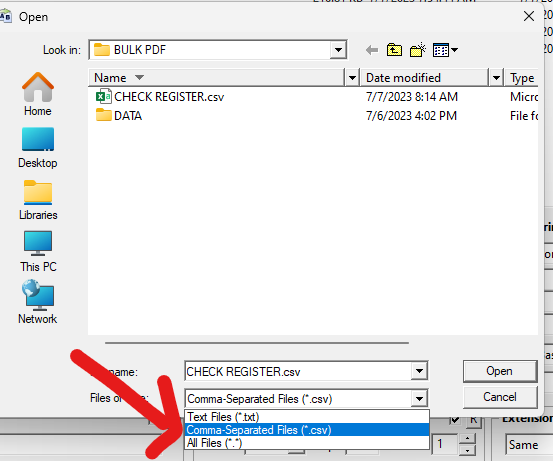
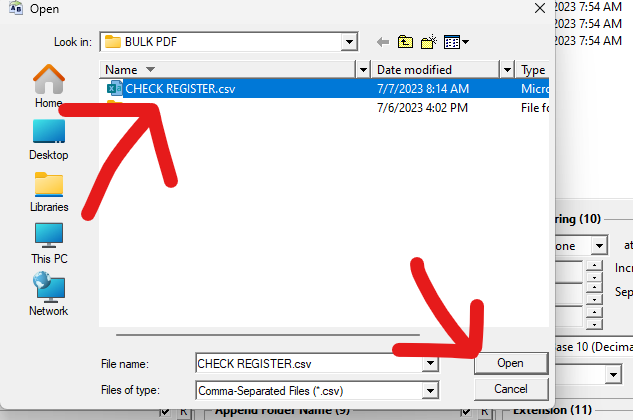
- In the pop-up window, change the file type to CSV, select your CSV file, and click 'Open.'
- Select the files listed in the working directory within Bulk Rename Utility. The new name column should turn green, displaying the updated file names.
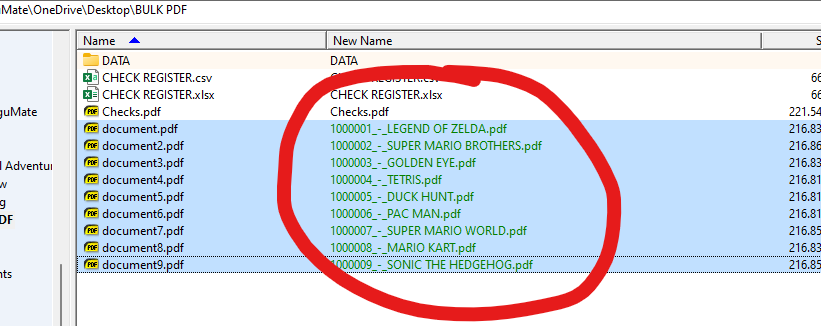
- Verify that everything appears correct and click 'Rename' in the bottom-right corner. A warning may pop up; proceed with renaming or choose to cancel for corrections.
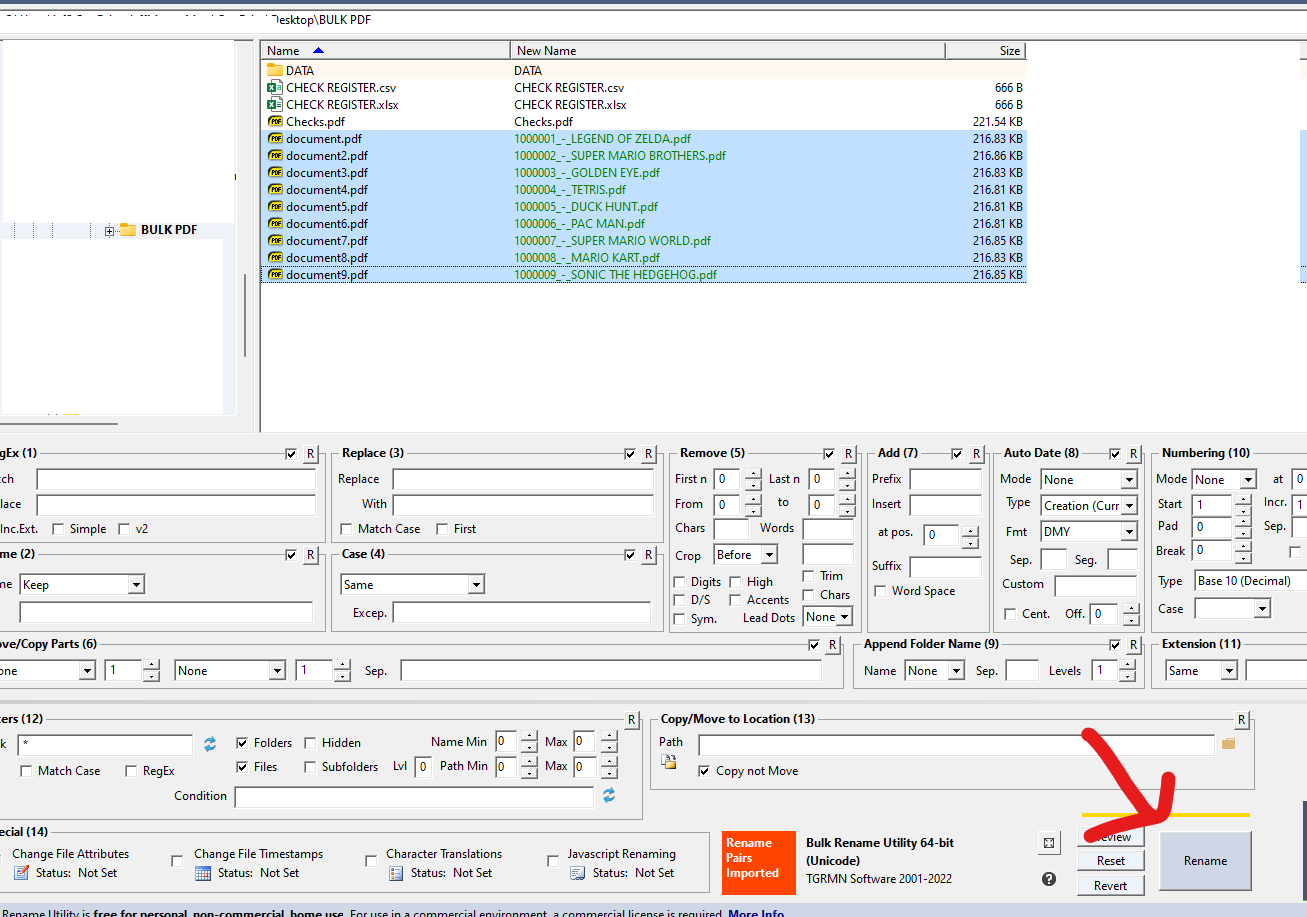
- Return to your working directory to find the renamed files, now ready for further use.

This walkthrough presents one solution to a common problem, offering a practical approach to efficiently split and rename PDFs. It's important to note that various methods can lead to the same desired outcome, including full automation of the entire process. If you have any questions about the provided walkthrough feel free to reach out to me. info@dubanalog.com